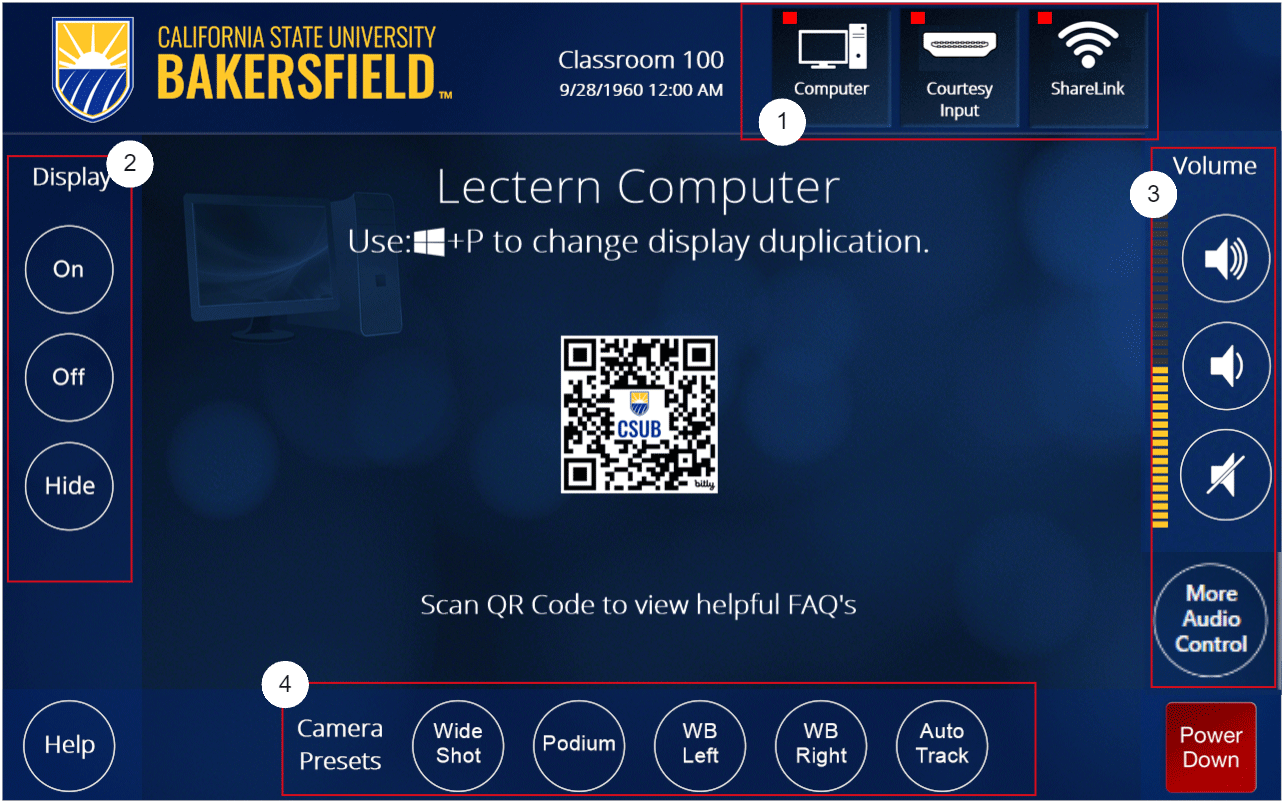
ITS has a function in Smart Flex classroom touch display controllers that fix most
Audio and Video problems we encounter. If things are not working right with the classroom
equipment try restoring defaul settings. on the Right side of the touch controller is a button labled "More Audio Controls"
once you have started the system. Tapping that button will display another button
indicating "Default Settings". Tapping Default Settings will re-issue power on commands
to the displays remove any mutes that are active. No. Using Mute or Hide may make it look like the screens are off. They are actually just displaying a black
picture. To preserve the life of the screens ITS asks that the Display Off or Power Down function be used when not being used for an extended period of time. In some cases it is possible to attempt to send the power command to the projector
if its in a cooling state. If you need immediate assistance with a class in progress you can call to get an agent
or email us for assistance.
This often occurs because the room was recently powered down and not enough time had
passed before turning the system back on.
Tapping the ON button the left side of the Touch Controller will re-send the power
on command to the projefctor.
Older installations have the word "Mute" written under display and newer installations
have the word "Hide". Tap Mute or Hide under Display to toggle the black image override.
An active Hide or Mute will have a yellow or red button border. For active display
make sure the white circle around th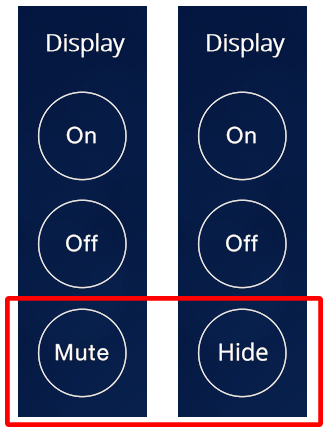 e word Hide is white in color.
In many cases the computer is often left in Extended display mode. this causes the
room computer to treat the projector and monitors in the same way an office would
be setup with dual monitors. Cycling the display modes can correct this.
On occasion the computer might be left in extended desktop. The computer is normally set to "Duplicate" so it can share the presentation
view to the projector/TV..
The computer display mode can be toggled.
Windows:  + P
+ P
Press the "Windows key" and the "P" key simultaneously. This will show a pop up on
the right side of the screen allowing you toggle between display modes.
If you press and hold the Windows key and tap the "P" key in succession, this will
cycle the display modes. You will see the screen flash as it cycles between each mode.
MacOS:  + F1
+ F1
Pressing the Command key and the F1 key simultaneously will cycle the the Mac display
between Extended and Duplicate display modes.
The computer display mode can be toggled.
Windows:  + P
+ P
Press the "Windows key" and the "P" key simultaneously. This will show a pop up on
the right side of the screen allowing you toggle between display modes.
If you press and hold the Windows key and tap the "P" key in succession, this will
cycle the display modes. You will see the screen flash as it cycles between each mode.
MacOS:  + F1
+ F1
Pressing the Command key and the F1 key simultaneously will cycle the the Mac display
between Extended and Duplicate display modes.
Check the projector to see if it has a blinking light. If there is a blinking light
on the projector, wait a couple of minutes for the light to stop blinking and try
again.